Chrome bookmarks bar not showing? 5 ways to get it back
Your bookmarks bar shows up on a new tab, but it's gone on every website? Or it's missing completely? Here are five fixes, the fastest first.
Fix 1: Press the shortcut
Press Ctrl + Shift + B. On a Mac it's ⌘ + Shift + B. The bar is back, on every page.
The same keys hide it again. That makes it easy to switch the bar off by accident.
You can also switch it on with the mouse. Open the three dots menu at the top right and look under Bookmarks and lists.
Fix 2: Set the bar to “Always show”
The bar appears on a new tab but disappears as soon as you open a website? Then Chrome is set to show it only there. A fresh Chrome starts out this way.
- Open the three dots menu at the top right and choose Settings.
- Click Appearance on the left.
- Find the row Bookmarks bar. If it says Only show on New Tab page, pick Always show.
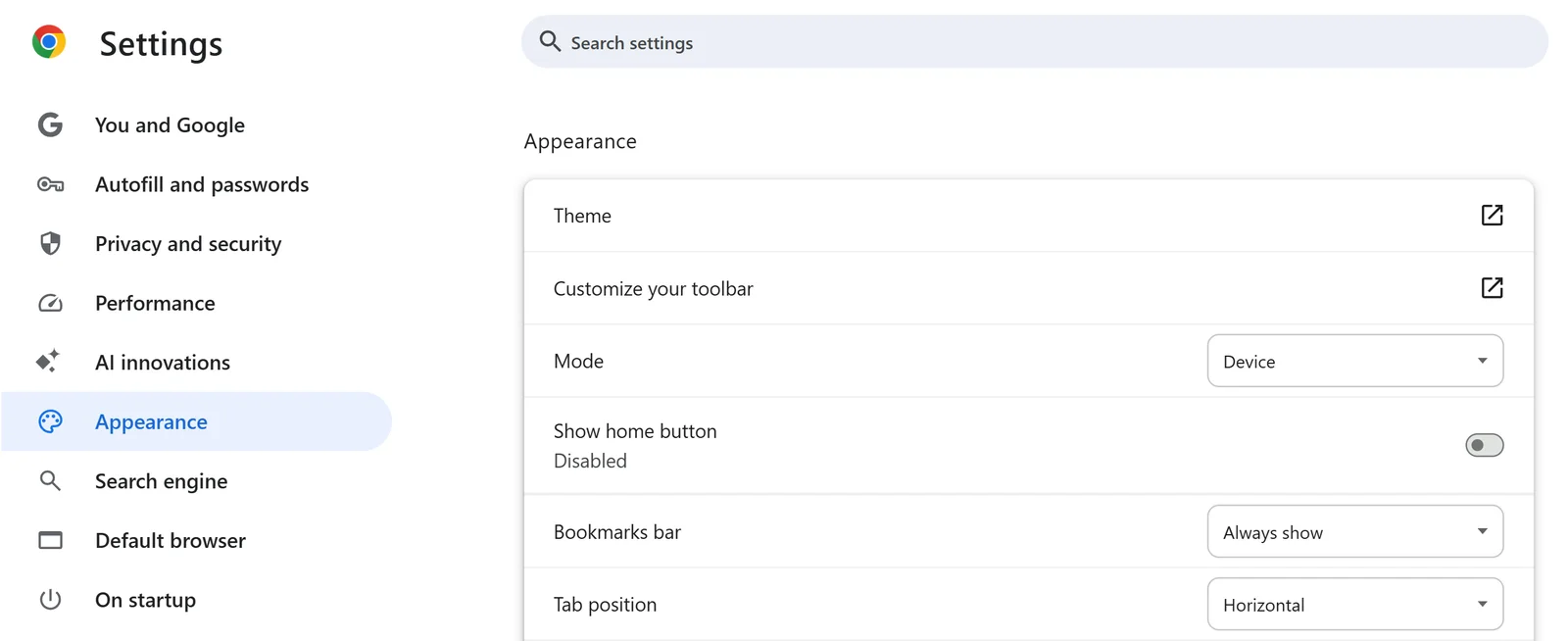
Older Chrome versions have a switch called Show bookmarks bar in the same place. Turn it on.
Good to know. Newer Chrome can hide a bar you haven't used for a while and tells you so in a small note. With Always show selected, that no longer happens.
Fix 3: Leave full screen
The whole toolbar is gone, the address bar too? Then Chrome is in full screen. Press F11 to leave it, or hold Esc. On a Mac press Fn + F.
Fix 4: The bar is there, but empty
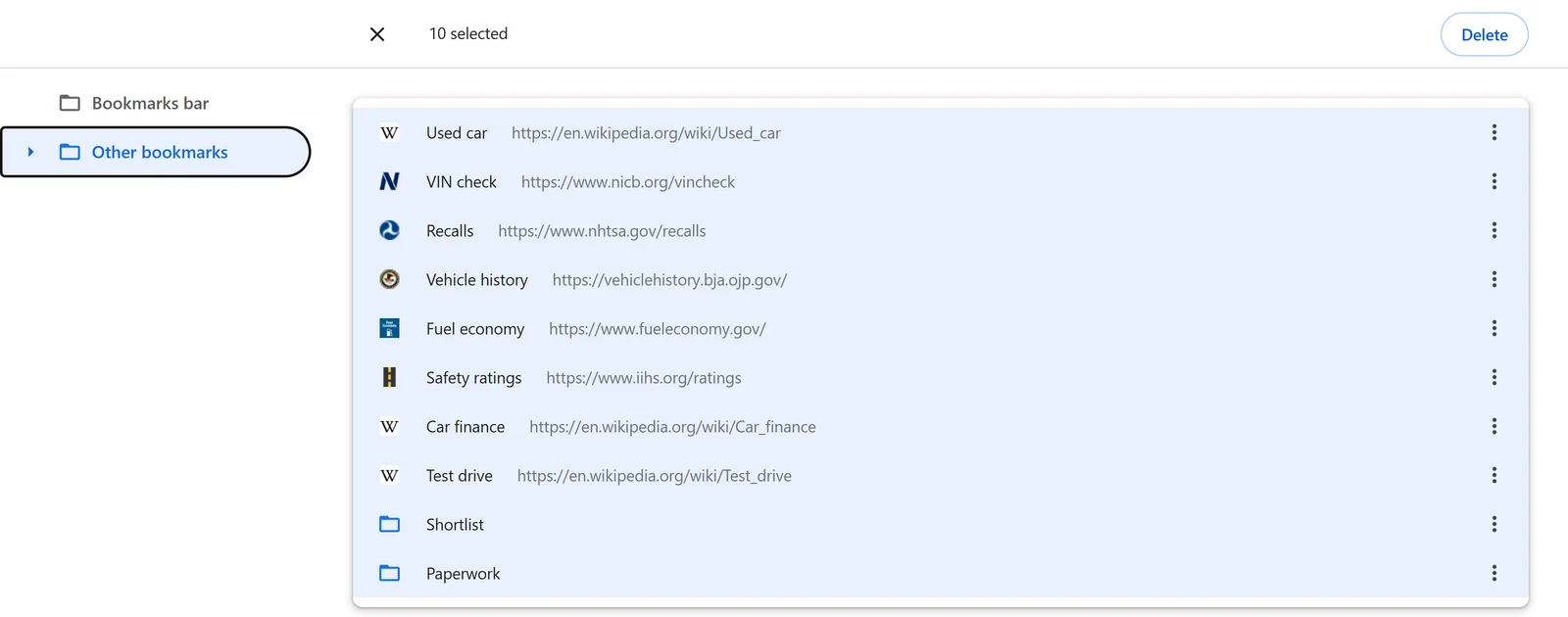
The bar shows only one folder, called Bookmarks bar. Bookmarks saved anywhere else sit in Other bookmarks. You reach those through All Bookmarks at the right end of the bar, but they are not on the bar itself.
To put them on the bar:
- Open the Bookmark Manager with Ctrl + Shift + O. On a Mac it's ⌘ + Option + B.
- On the left, click the folder your bookmarks are in, for example Other bookmarks.
- Press Ctrl + A. That selects everything in the folder, subfolders too.
- Press Ctrl + X to cut.
- Click Bookmarks bar on the left and press Ctrl + V.
On a Mac, use ⌘ instead of Ctrl. Made a mistake? Press Ctrl + Z until everything is back where it was.
Still empty?
- Wrong profile. Each Chrome profile has its own bookmarks. Switch profiles with the profile button at the top right.
- Signed out of Chrome. Sign back in. Bookmarks saved in your Google Account come back.
Fix 5: Work or school computer
Open the three dots menu and look at the very bottom. If it says Managed by your organization, your organization may have switched the bookmarks bar off. Then only they can turn it back on. Ask your IT admin.
All five at a glance
- Bar gone everywhere: press Ctrl + Shift + B (Mac: ⌘ + Shift + B).
- Bar only on a new tab: Settings, Appearance, Bookmarks bar, Always show.
- Address bar gone too: press F11 (Mac: Fn + F).
- Bar empty: move your bookmarks into the folder Bookmarks bar.
- “Managed by your organization”: ask your IT admin.
Bar is back? Here is how to keep it tidy: How to organize bookmarks in Chrome.