How to organize bookmarks in Chrome
Three steps, with the tools Chrome already has. No extension, nothing to install. At the end your daily sites sit on one tidy bar, everything else lives in a few folders, and you can find any bookmark in seconds.
Step 1: Put your daily sites on the bookmarks bar
The bookmarks bar is the row right under the address bar. If you don't see it, press Ctrl + Shift + B. On a Mac it's ⌘ + Shift + B. The same shortcut hides it again.
The bar stays hidden, or it is empty? See Chrome bookmarks bar not showing.
The bar is for the ten or so sites you open every day. Not for everything.
- Open a site you use daily.
- Click the star at the right end of the address bar, or press Ctrl + D.
- In the small window that opens, choose Bookmarks bar as the folder and click Done.
- Drag the bookmarks on the bar into the order you use them.
Fit more on the bar. Right-click a bookmark on the bar, choose Edit and delete its name. Only the icon stays, so the bar holds a lot more. Do this only for sites with a clear icon. Five look-alike icons get confusing fast.
Step 2: Sort the rest into a few folders
Everything that isn't a daily site goes into a folder. Keep it to five or six topics, for example Work, Home, Money and Travel.
- Right-click an empty spot on the bookmarks bar and choose Add folder.
- Give it a short name.
- Drag bookmarks on the bar straight onto the folder.
A folder on the bar opens like a menu, so one click shows the whole topic.
Save a whole project at once
Planning something with lots of tabs? Open just those tabs in a new window, then press Ctrl + Shift + D (Mac: ⌘ + Shift + D). Chrome saves every tab in that window into one new folder.
One level of folders is usually enough. Folders inside folders inside folders are where bookmarks go to hide.
Step 3: Clean up in the Bookmark Manager
The Bookmark Manager shows all your bookmarks on one page. Open it with Ctrl + Shift + O. On a Mac it's ⌘ + Option + B. Your folders are on the left. What's inside is on the right.
Move bookmarks where they belong
Drag a bookmark onto a folder on the left. Or right-click it, choose Cut, open the right folder, right-click and choose Paste.
Sort a folder from A to Z
- Click the folder on the left.
- Click the three dots at the top right.
- Choose Sort by name.
Folders come first, then everything from A to Z. Only the folder you selected changes.
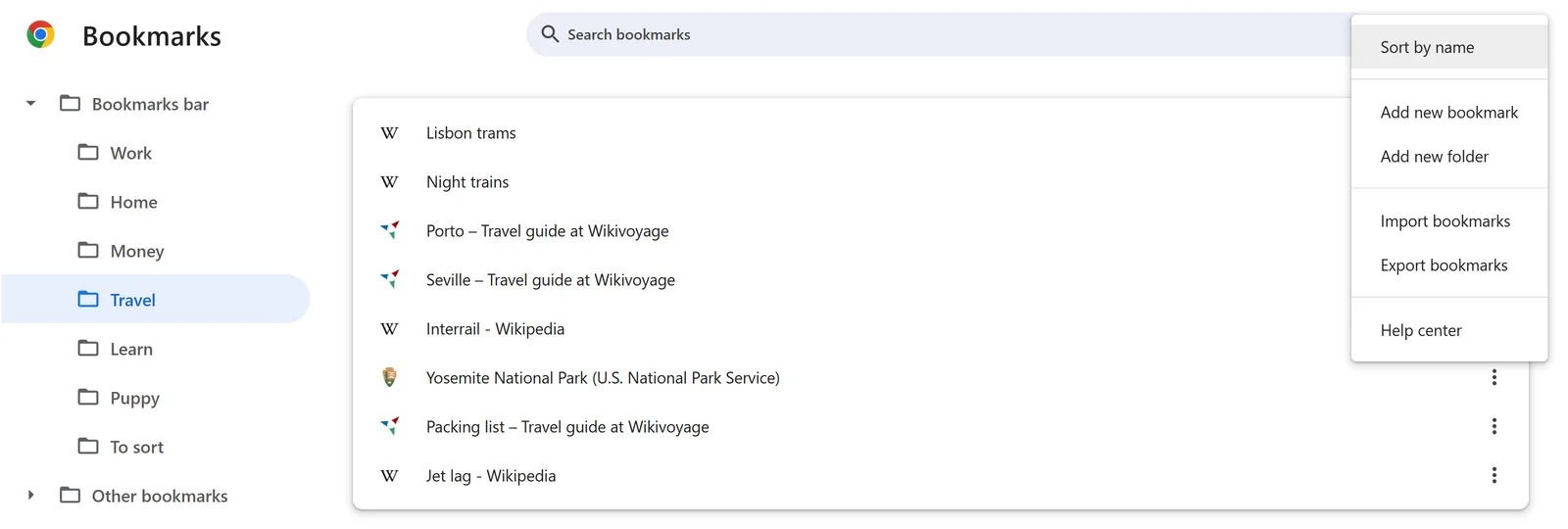
Don't sort the bookmarks bar itself. If Bookmarks bar is selected on the left, Chrome sorts the bar and your own order is gone. If that happens, click Undo in the note at the bottom left right away.
Delete what you no longer need
Old links you'll never open again? Select one and press Delete. Deleted the wrong one? A note with Undo appears at the bottom left. Or press Ctrl + Z.
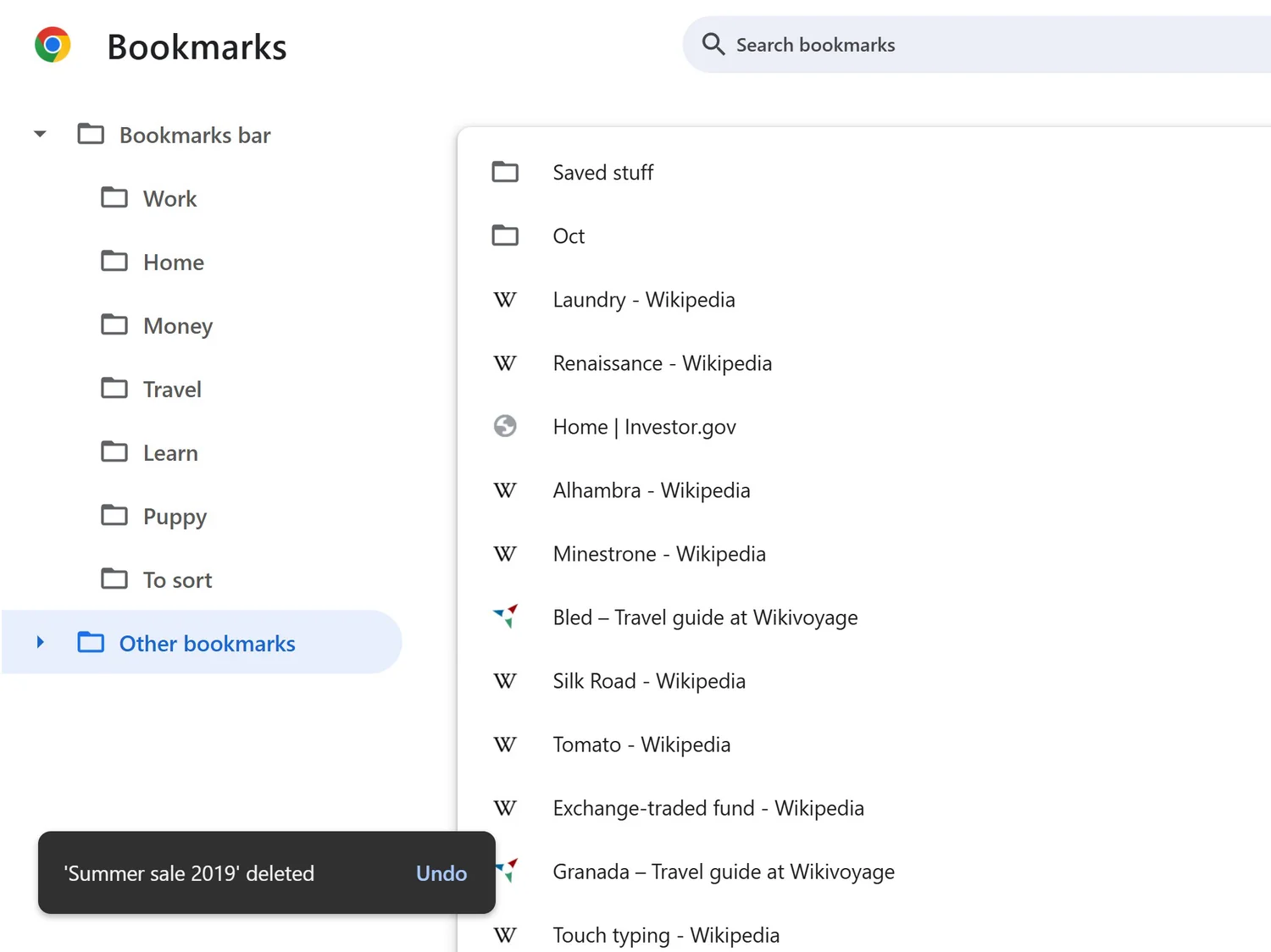
A quick clean-up once a month is enough to keep it this way.
Find any bookmark in seconds
Two quick ways:
- From the address bar. Type @bookmarks, press Tab, then type a word from the bookmark's name.
- In the Bookmark Manager. Use the search box at the top. It looks through web addresses too, so even a bookmark without a name turns up.
All shortcuts at a glance
| What it does | Windows and Linux | Mac |
|---|---|---|
| Show or hide the bookmarks bar | Ctrl + Shift + B | ⌘ + Shift + B |
| Bookmark the current page | Ctrl + D | ⌘ + D |
| Save all tabs of a window into a new folder | Ctrl + Shift + D | ⌘ + Shift + D |
| Open the Bookmark Manager | Ctrl + Shift + O | ⌘ + Option + B |
| Undo a deleted bookmark | Ctrl + Z | ⌘ + Z |